
I talk about progressive enhancement a lot. Like, a lot. So when it came time to redesign my own site, I figured it was time to actually practice what I preach. What started as a typography fix turned into a full redesign powered by view transitions, corner-shape, @property, scroll-state queries, anchor positioning, and more. All progressively enhanced. All without a single polyfill.
If you’ve been reading my articles or attended one of my talks, you probably know that I’m quite the fan of progressive enhancement. I’ve written about why you should be using new CSS features today, I’ve done conference demos showing off @supports and feature detection, and I’ve been trying to advocate the idea that we can use new CSS features without waiting for full browser support ever since I read Andy Clarke’s “Hardboiled web design” in 2010. So when I looked at my own blog and realized it wasn’t exactly living up to that message… well, it was time to do something about it.
It started out as a “just a quick typography fix” and turned into a full redesign (as it goes with side projects, nothing ever stays small). I wanted to share some of the things I did, some of the features I used, and how progressive enhancement plays into all of it. The CSS isn’t perfect (yet), it’s a side project after all and I will keep tinkering with it, but I had a lot of fun building this.
It started with typography
This one was on top of my list for quite some time. The font pairing on the old site just didn’t feel right anymore. The hierarchy was a bit off, and the reading experience could be better. I decided to go with Young Serif for headings, it has this warm character without being overly decorative. Inter for body text because it reads beautifully on screens, and I kept Source Code Pro for code blocks because the only thing I did love on the previous version was the code blocks.
Beyond just swapping fonts, I also reworked the entire type scale. Once again, it uses fluid sizing with clamp(), so the typography scales smoothly between viewport sizes without breakpoints:
--s-font-size-base: clamp(1rem, 0.46vw + 0.91rem, 1.31rem);
--s-line-height-base: clamp(1.625rem, 0.74vw + 1.48rem, 2.13rem);
--s-font-size-h1: clamp(1.3125rem, 3.15vw + 0.68rem, 3.44rem);
I also rethought the color palette while I was at it. The new design uses a warm cream base for light mode insted of being just “harsh” and a deep indigo for dark mode, built on oklch and color-mix() to keep things perceptually consistent across both themes.
But there was this other thing that was bugging me…
From SCSS to plain CSS, and organizing the project
I dropped SCSS entirely. The whole codebase is now plain CSS with native nesting. No Sass compilation, but I did rely on postCSS for the very basic things such as imports and minification. I wrote an article years ago wondering whether it was time to stop pre-processing CSS, and I believe this time was the right time.
For the architecture, I went with CSS cascade layers following a sort of “atomic design” approach:
@layer vendor, tokens, reset, base, atoms, molecules, organisms, pages, utilities;I chose to load vendors first (don’t have many of those to begin with except for Prism). Makes it easier to override them if needed.
Each layer has its own set of files. One decision I’m quite happy with is putting some progressive enhancement features in their own dedicated files (for now). Things like corner-shapes.css and view-transitions.css each have their own file, which gives me a clear overview of what’s enhanced and makes it easy to manage or remove things if needed. It’s a small thing, but it helped a lot while the updates keeps growing (and believe me, they did).
Corner-shape: squircles and scoops
I have to admit, this one brings a smile to my face every time I look at it. If you’ve read my end-of-year article on corner-shape, you know I’m a fan. The corner-shape property lets you control how border-radius curves are drawn, giving you squircles instead of the standard circular arcs.
The entire implementation lives behind @supports, which makes it progressive enhancement in its purest form. If your browser supports it, you get those smooth curves. If not, you still get regular border-radius and you’re none the wiser:
@supports (corner-shape: squircle) {
    .intro-text {
        corner-shape: squircle;
    }

    .home-latest .article-preview {
        corner-shape: squircle;
    }

    pre[class*="language-"] {
        corner-shape: squircle;
    }

    .nav-category,
    .related,
    .comments {
        corner-shape: squircle;
    }
}
One thing worth mentioning: when corner-shape is supported, the existing border-radius values often look too subtle because the squircle curves are smoother by nature. So I bump up the radius primitives inside the @supports block to compensate. It’s not the most elegant solution, but it does the job. Yes, a purist would say I shouldn’t change a primitive…
My favorite part though, is the button hover effect. When you hover a button, the corner-shape transitions from round to round round round scoop, giving the bottom-left corner a playful inward curve:
.btn:not(.btn-link) {
    corner-shape: round;
    transition: corner-shape 0.24s ease, border-radius 0.24s ease;

    &:is(:hover, :focus-visible) {
        corner-shape: round round round scoop;
    }
}
View transitions: direction-aware navigation
Cross-document view transitions were the feature I was most excited to add. The foundation is surprisingly simple:
@view-transition {
    navigation: auto;
}
That gives you a basic crossfade between pages. But I wanted a bit more control. The header and footer are persistent elements, so they get animation: none (no need for them to animate). The main content fades, and the interesting bit is what happens with article previews.
Each article preview’s image, title, lead text, and date get a view-transition-class. When you click an article from the homepage, those elements morph into their corresponding positions on the article page. The image smoothly scales and repositions, the title flows to its new location. It creates this continuity that makes the site feel a bit more cohesive:
.article-preview-image {
    view-transition-class: post-image;
}

.article-preview-header h2 {
    view-transition-class: post-title;
}

.article-body > figure:first-child {
    view-transition-class: post-image;
}

.article-header h1 {
    view-transition-class: post-title;
}
I also added direction-aware transitions using :active-view-transition-type(). Going deeper into the site (clicking an article) slides the content to the left. Going back slides it to the right. Navigating between pages at the same level does a subtle crossfade:
:active-view-transition-type(forward) {
    &::view-transition-old(page-content) {
        animation: 0.25s cubic-bezier(0.4, 0, 1, 1) both vt-slide-out-left;
    }
    &::view-transition-new(page-content) {
        animation: 0.3s 0.05s cubic-bezier(0, 0, 0.2, 1) both vt-slide-in-right;
    }
}

:active-view-transition-type(back) {
    &::view-transition-old(page-content) {
        animation: 0.25s cubic-bezier(0.4, 0, 1, 1) both vt-slide-out-right;
    }
    &::view-transition-new(page-content) {
        animation: 0.3s 0.05s cubic-bezier(0, 0, 0.2, 1) both vt-slide-in-left;
    }
}
And of course, all of this respects prefers-reduced-motion. If a user has that preference set, every transition duration drops to essentially zero. Progressive enhancement goes both ways: enhance for those who want it, back off for those who don’t.
One more thing on view transitions: each article preview and its corresponding article page share data-vt attributes on matching elements (title, image, date, lead text). Instead of writing a unique view-transition-name for every single article in CSS, I used the enhanced attr() to pull the transition name straight from the HTML:
[data-vt] {
    view-transition-name: attr(data-vt type(<custom-ident>));
}
This is the enhanced version of attr(), not the old string-only one we’ve had forever. It can now resolve to typed CSS values like <custom-ident>, <color>, <length>, and more. This is part of interop 2026, which means browser support should be solid by the end of 2026. I decided to use this for a couple of updates because of this reason.
The orbs: @property meets scroll-driven animations
The old homepage had these colorful orb-like blobs in the background. They used a mix-blend-mode which used to have a “wow factor” when I first created this website, It also used scroll-driven-animations to make them move but that was already an updates as I used GSAP before that. I liked the vibe of those orbs, they gave the page some personality. But they were static and felt a bit dated (and I really wanted a hue shift somewhere…).
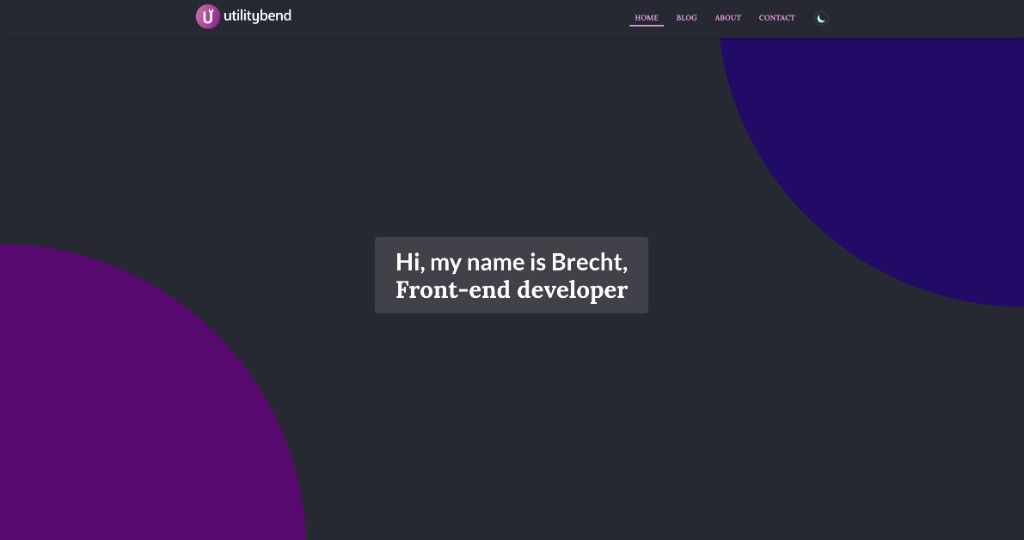
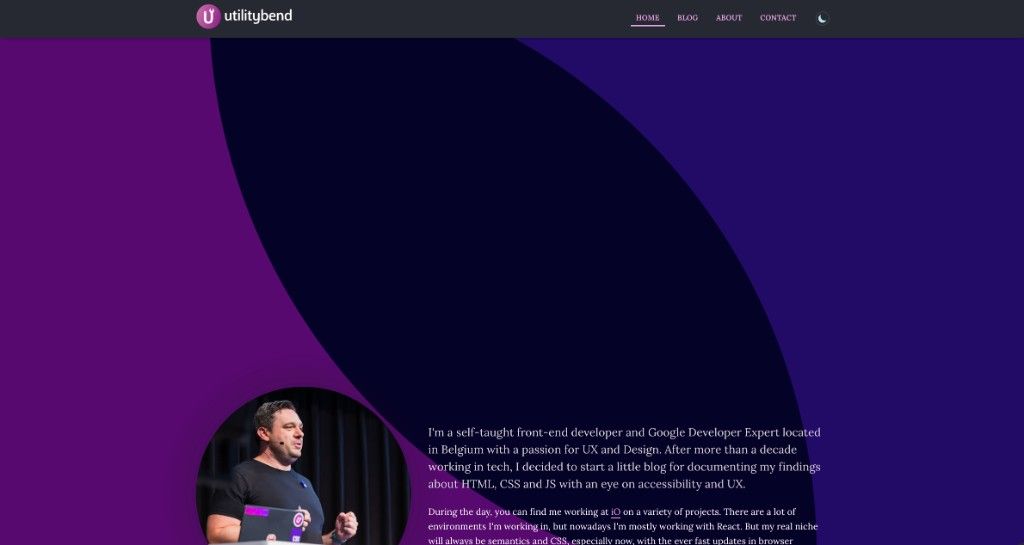
I wanted to keep the same idea but make them feel alive. If you haven’t played with @property yet, I’ve written about it in depth and used it for animating clip-paths on scroll. The magic is that it lets you register custom properties with a type, which means CSS can actually interpolate them. You can’t normally transition a hue value inside an oklch() color, but if you register a custom property as a <number>, suddenly you can:
@property --atm-hue-1 {
    syntax: "<number>";
    inherits: false;
    initial-value: 30;
}

@property --atm-opacity-1 {
    syntax: "<number>";
    inherits: false;
    initial-value: 0.28;
}
If you are wondering, the atm stands for atmoSPHERE, get it? get it? ok… moving on…
The blobs themselves are ::before and ::after pseudo-elements with organic border-radius values, colored with oklch using those registered properties:
.homepage-sections::before {
    inline-size: 50vw;
    block-size: 50vw;
    border-radius: 62% 38% 46% 54% / 60% 44% 56% 40%;
    background: oklch(85% 0.08 var(--atm-hue-1));
    opacity: var(--atm-opacity-1);
    filter: blur(clamp(60px, 8vw, 120px));
}
When scroll-driven animations are supported, those properties animate as you scroll down the page. The hue shifts, the opacity pulses, the blobs drift across the screen. It’s subtle, but it makes the homepage feel like it’s breathing:
@supports (animation-timeline: scroll()) {
    .homepage-sections::before {
        animation: atm-light-1 linear forwards;
        animation-timeline: scroll(root);
    }
}
It took a bit of time to get it the way I wanted it, especially in the light theme I had to tinker quite a lot to keep the sort of “elegance” in the cream coor scheme.
I used the same @property approach for the buttons. The gradient angle and color stops are registered custom properties, so hovering a button smoothly transitions the gradient direction and colors instead of just snapping between states. I wrote about building a smart button system with custom properties before, and this takes that idea a step further.
Navigation: :has() and anchor positioning
I hated my old navigation, it was boring as hell so I really enjoy this one. The desktop navigation has a pill-shaped highlight that sits on the active page link. When you hover over a different nav item, the pill smoothly slides over to it. When you stop hovering, it slides back. No JavaScript involved, and it degrades perfectly to a simple static highlight.
The trick combines two features I’ve written about quite a bit: :has() (which I genuinely believe we’ve only scratched the surface of) and anchor positioning.
Let’s look at how it works. The active nav link gets an anchor-name. When another link is hovered, :has() detects this and moves the anchor name to the hovered link instead. A ::before pseudo-element on the nav list is positioned using position-anchor, so it follows wherever the anchor goes:
@supports (anchor-name: --a) {
    .nav-desktop .nav-link {
        &:not(:has(.nav-link:hover)).active {
            anchor-name: --nav-pill;
        }

        &:is(:hover, :focus-visible) {
            anchor-name: --nav-pill;
        }
    }

    .nav-desktop .nav-list:has(.nav-link:hover)
        .nav-link.active:not(:hover) {
        anchor-name: none;
    }

    .nav-desktop .nav-list::before {
        position-anchor: --nav-pill;
        inset: anchor(top) anchor(right) anchor(bottom) anchor(left);
        border-radius: 100vw;
        background: var(--s-color-highlight);
        content: "";
        transition: 0.2s;
    }
}
Everything sits behind @supports (anchor-name: --a). Without it, you simply get a static background color on the active link. Perfectly functional, just without the sliding animation.
On mobile, the navigation uses the Popover API with @starting-style for a smooth slide-in animation. I wrote about both popovers and @starting-style before, and it’s really satisfying to see them work together for something as common as a mobile menu.
Scroll-state queries, the progress bar, and CSS carousels
If you’ve been following along, you might have read my articles on scroll-state queries when they first landed and the more recent update with scrolled and scrollable states. I’m using them in a few places on this site now, and I have to say, it feels great to use your own articles as reference material for the things you’re building.
The header
The header uses scroll-state queries in two ways. First, when it’s stuck to the top, it gets a more pronounced shadow:
@supports (container-type: scroll-state) {
    .header-container {
        container-type: scroll-state;
    }

    @container scroll-state(stuck: top) {
        .header {
            box-shadow: 0 2px 12px rgb(58 52 42 / 0.1),
                        0 4px 24px rgb(58 52 42 / 0.06);
        }
    }
}
Second, the header hides when you scroll down and reappears when you scroll back up. The scrolled: top and scrolled: bottom states handle it without any Intersection Observer or scroll event listeners:
@container scroll-state(scrolled: top) {
    .header-container {
        translate: 0 0;
    }
}

@container scroll-state(scrolled: bottom) {
    .header-container {
        translate: 0 calc(-100% + var(--s-progress-height));
    }
}
The article progress bar
That var(--s-progress-height) in the translate? That’s the article reading progress bar peeking through at the bottom of the header. When you’re reading an article, there’s a thin gradient bar that grows from left to right as you scroll. Both the bar height and the translate offset share the same semantic token, so they stay in sync. It uses :has(.article-body) so it only shows up on pages that actually have an article, and animation-timeline: scroll(root) to tie the progress to the scroll position:
@supports (animation-timeline: scroll()) {
    body:has(.article-body) .header::after {
        position: absolute;
        inline-size: 100%;
        block-size: var(--s-progress-height);
        inset-block-end: 0;
        transform-origin: left;
        scale: 0 1;
        background: linear-gradient(
            90deg,
            var(--s-color-brand-primary),
            var(--s-color-brand-primary-muted)
        );
        content: "";
        animation: progress-grow linear both;
        animation-timeline: scroll(root);
    }

    @keyframes progress-grow {
        to {
            scale: 1 1;
        }
    }
}
It’s a nice little detail. Browsers that don’t support animation-timeline simply don’t show it. No harm done.
CSS carousels with scroll markers and scroll buttons
One of the new features I’ve been most excited about is CSS-only carousels. I’m using the ::scroll-button() pseudo-element in two places on the homepage: the photo reel and the new Bluesky feed.
I know there are accessibility concerns with these carousels, but It’s not making my content inaccessible, it might just not be the best practice. My website, my choice, and I’m ok with this (for this usecase).
The Bluesky feed is a new addition to the homepage that shows my latest posts in a horizontally scrollable strip of cards. Both the feed and the photo reel share the same carousel CSS, which I put in a single scroll-carousel.css file. The scroll buttons are positioned using anchor positioning (another great use case for it), and scroll-state queries handle showing and hiding the gradients based on whether there’s content to scroll to:
@supports (container-type: scroll-state) {
    .bluesky-feed,
    .photo-reel-carousel {
        container-type: scroll-state;
    }

    @container scroll-state(scrollable: left) {
        .scroll-fade-start {
            opacity: 1;
        }
    }

    @container scroll-state(scrollable: right) {
        .scroll-fade-end {
            opacity: 1;
        }
    }
}
Without support for scroll-marker-group, the carousels still work as basic horizontal scroll containers with scroll-snap. You can still swipe through them, you just don’t get the nice prev/next buttons and dot indicators. Progressive enhancement doing its thing.
The table of contents
The article table of contents uses scroll-target-group: auto combined with :target-current to automatically highlight the section you’re currently reading. And when anchor positioning is also supported, that highlight becomes an animated indicator bar that smoothly slides between items:
@supports (scroll-target-group: auto) {
    .article-toc ol {
        scroll-target-group: auto;
    }

    .article-toc a:target-current {
        border-inline-start-color: var(--s-color-brand-primary);
        color: var(--s-color-brand-primary);
    }
}
The TOC list itself uses @container scroll-state(scrollable: top) and scrollable: bottom to show fade gradients when there’s more content to scroll to. Small detail, but it helps with those longer articles where the TOC overflows.
To be honest, this one might be a bit on the edge, I decided to keep the TOC in every browser even if they don’t have an active state. I might get back on that later on.
The photography corner
One thing I really wanted with this redesign is to give photography a more prominent place on the site. I’ve always loved taking pictures, and I hope to actually maintain this part a bit more in the upcoming years.
The old homepage had a single hero image tucked away at the bottom. The new version has a horizontal photo reel right on the homepage, built with the same CSS carousel approach: scroll-snap, and ::scroll-button() for navigation. There’s also a dedicated photography page with a proper grid layout, infinite scroll, and a lightbox. It finally feels like it has a proper home.
The lightbox uses a native <dialog> element and I will be updating that grid from the moment we have grid-lanes in CSS. It’s actually the only JS-heavy part of this website at the moment.
Same HTML, different paint job
Something I’m quite happy about with this redesign: the HTML barely changed. The whole thing was primarily a CSS effort. The existing markup stayed intact, and all these new visual features, view transitions, corner shapes, scroll-driven animations, sticky header tricks, were layered on top of what was already there.
That’s the whole point of progressive enhancement, isn’t it? You don’t rip out your DOM to add a squircle. The data-vt attributes for view transitions are one of the few HTML additions, and even those are just a handful of data attributes on elements that already existed.
This approach also made the move to container queries a lot smoother. Same components, same markup, just a different type of query. Which brings me to…
Slowly moving to container queries
One last thing worth mentioning: I’m gradually replacing media queries with container queries where it makes sense. I’ve been writing about container queries since 2021, so it was about time I used them more on my own site.
The homepage article cards, for example, switch from a stacked layout to a side-by-side layout based on the container width, not the viewport:
.home-hero-articles .home-articles {
    container-type: inline-size;
}

.article-preview {
    @container (min-inline-size: 630px) {
        display: grid;
        grid-template-columns: 110px 1fr;
        align-items: center;
    }
}
I haven’t migrated everything yet, but slowly, query by query, it’s getting there. The nice thing about container queries is that the same component just works, whether it’s in a full-width layout or squeezed into a sidebar.
Other things
I also updated my code examples just a bit, more especially the frame by just giving it a header (I just used a multi-background image for that). I changed some of the badges so that the CSS category reflects the CSS logo color. Removed X from the share options, and updated the about page a bit. While i was updating the about page I decided to make my company logo work with scroll-triggered animations. this is now in the latest chrome so it suddenly worked (I added it in Canary).
This is going to be a lot of fun: seing more browsers get these capabilities!
Wrapping up
So… sorry for the amount of self-linking articles in this one, but I wanted to show that it is due to my own writing and experimenting with these features that I was able to build this improvement. All these things, small demos had to be done to actually understand how they work and how to use them. Call it selfish, but this article is a reminder to myself that all these little things can make me create better experiences.
Every feature I added follows the same pattern: the basics works everywhere, and browsers that support newer things get something extra on top. No polyfills, no JavaScript workarounds, no “please use Chrome” disclaimer.
It’s not perfect yet, but it’s a start (as in, good enough to ship). I’m happy I did this.
Progressive enhancement isn’t just about fallbacks. It’s about layering experiences. Start with something solid, then add on top. The squircle corners, the view transition morphing, the sliding nav pill, the scroll-state header, the reading progress bar, the CSS carousels… none of these are essential for reading the content. But together, they make the experience feel a bit more alive, a bit more intentional (and fun!).
I had a lot of fun building this, and I hope it inspires you to try something similar on your own projects. Pick one feature, wrap it in @supports, and see what happens. You might get hooked.
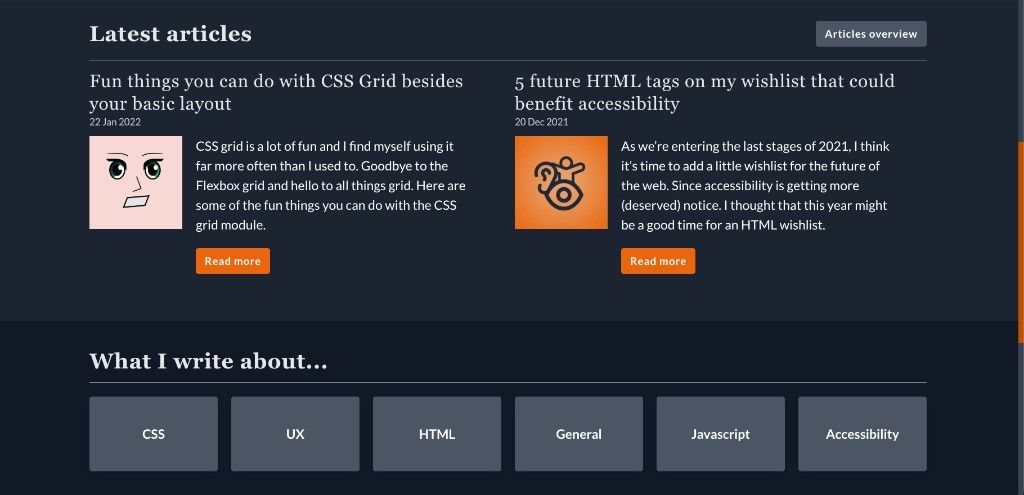
Oh and just for fun, here’s what this site looked like in an even earlier life. This was the Tailwind version. Redesigning it was also the reason I never wanted to use Tailwind again.
I hope you enjoyed this little look in my brain (and love the little updates).